Digital Wellbeing on Android: A Setup Guide
How to set up Digital Wellbeing on Android: the dashboard, app timers, Focus mode and Bedtime mode, plus Family Link for kids and tips that make limits stick.

A step-by-step guide to iPhone Screen Time: app limits, Downtime, Always Allowed, a Screen Time passcode and the settings that make limits actually stick.
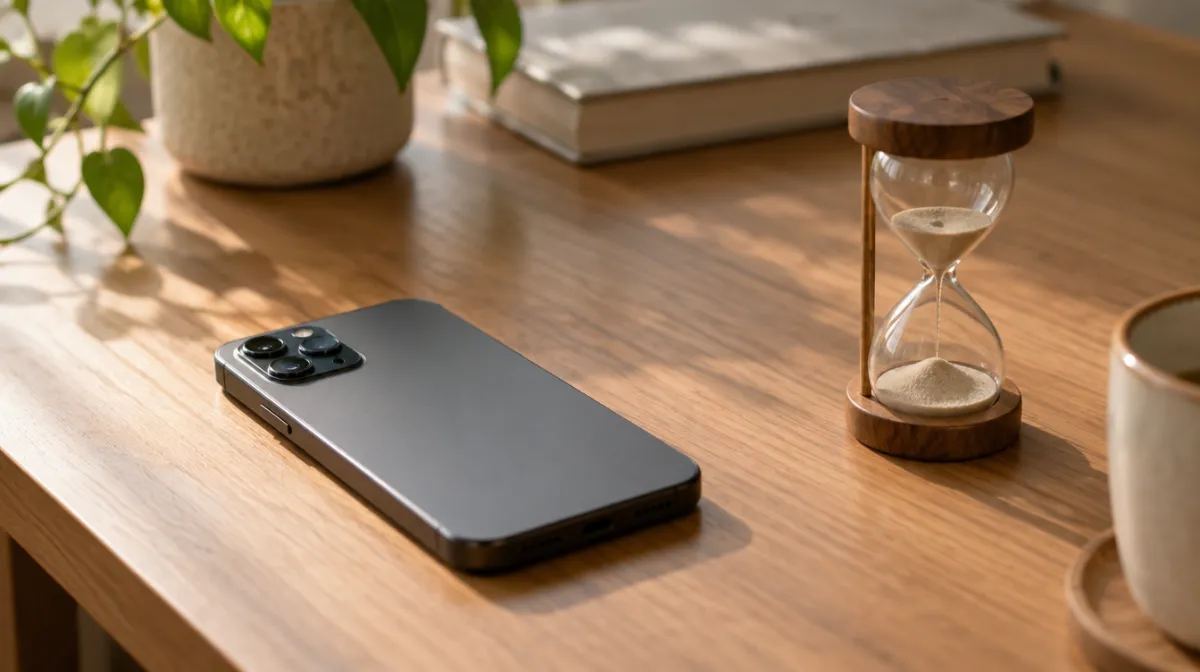
Every iPhone has Screen Time built in. It shows where your hours go and can limit the apps that eat them. The trouble is that most people set a limit, tap “Ignore Limit” the first time it appears and never think about it again. Here’s how to set it up so it actually works. Menu names vary slightly between iOS versions.
Go to Settings > Screen Time and turn on App & Website Activity. Then leave it alone for a week. Afterwards, tap See All App & Website Activity and note three things: your top apps, how many times a day you pick up your phone and which apps send the most notifications. Those are your targets.
Go to Settings > Screen Time > App Limits > Add Limit. You can limit whole categories, such as Social or Entertainment, or individual apps and websites.
Downtime blocks everything except calls and the apps you choose, on a schedule. Go to Settings > Screen Time > Downtime and set it for the hour before bed until the morning. It’s the single most useful setting for sleep, and it pairs well with a phone-free bedroom.
Under Always Allowed, keep only what you genuinely need during Downtime: Phone, Messages, Maps and perhaps a music or meditation app. Every extra app is a loophole.
Limits you can dismiss with one tap are reminders, not limits. To make them real, set a Screen Time passcode (called Lock Screen Time Settings on recent versions of iOS) and switch on Block at End of Limit for your app limits.
| Setting | What it does | Best for |
|---|---|---|
| App Limits | Daily time cap per app or category | Social media and video apps |
| Downtime | Blocks most apps on a schedule | Evenings and sleep |
| Always Allowed | Apps that work during Downtime | Calls, messages, maps |
| Communication Limits | Controls who can contact you, and when | Children’s devices |
| Screen Time passcode | Stops limits being ignored | Anyone serious about cutting down |
With Family Sharing, you can manage a child’s Screen Time from your own iPhone: go to Settings > Screen Time, choose your child’s name and set Downtime, App Limits, Content & Privacy Restrictions and Ask to Buy. Agree the rules together first; limits land better when children understand them. BratChild’s age-by-age screen time advice suggests sensible starting points for each stage.
Screen Time works best alongside other changes: turn off non-essential notifications, move tempting apps off the home screen and try grayscale mode. If you’re not sure how big the problem is, take our phone habits self-check first. Using Android as well? Here’s how to set up Digital Wellbeing on Android.
Without a Screen Time passcode, iPhone lets you tap Ignore Limit. Set a passcode and turn on Block at End of Limit, and the app stays locked until you enter it.
Yes. Turn on Share Across Devices in Screen Time settings to combine your reports and apply the same limits on every device signed in with your Apple Account.
There’s no universal number. Start by cutting your biggest app by 15 to 30 minutes a day, then adjust based on how you feel and sleep.
Every article is edited by a human and checked against our editorial policy. Spotted a mistake? Tell us.
How to set up Digital Wellbeing on Android: the dashboard, app timers, Focus mode and Bedtime mode, plus Family Link for kids and tips that make limits stick.
Does turning your phone grayscale really cut screen time? What small studies found, why colour matters, how to set it up on iPhone and Android, and its limits.
App blockers compared by approach: built-in limits, scheduled blockers, pause-before-open apps, focus timers and browser extensions, with pros, cons and tips.