How to Set Screen Time Limits on iPhone
A step-by-step guide to iPhone Screen Time: app limits, Downtime, Always Allowed, a Screen Time passcode and the settings that make limits actually stick.

How to cut notification overload on iPhone, Android, Mac and Windows: a simple triage rule, the exact settings to change, summaries, badges and app-by-app tips.
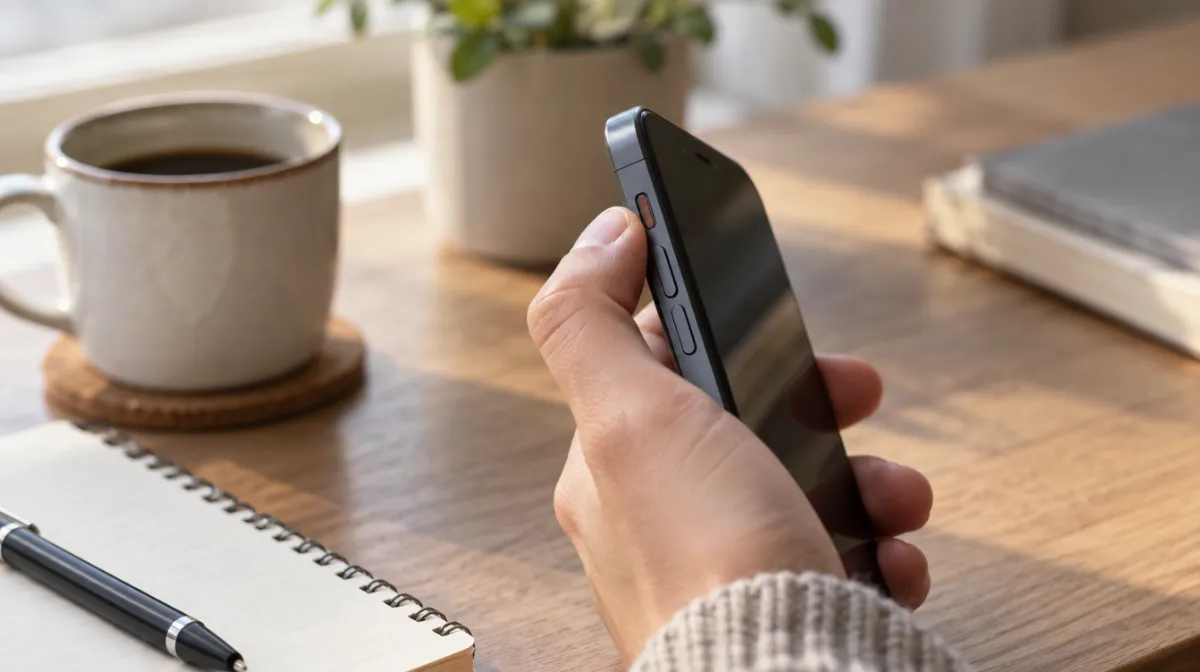
Most phones buzz dozens of times a day, and very few of those alerts need you right now. Each one pulls your attention away, and every interruption makes it harder to get back into what you were doing. The fix isn’t willpower; it’s settings. A simple rule works for most people: allow notifications from people and from genuinely time-critical services, and turn everything else off or make it silent. Here’s how to do that on iPhone, Android, Mac and Windows.
For one day, notice every alert and sort it into one of three groups:
| Group | Examples | What to do |
|---|---|---|
| People who matter | Calls and messages from family, friends, close colleagues | Keep, with sound if you like |
| Time-critical services | Calendar reminders, two-factor codes, delivery drivers, ride-share, banking fraud alerts | Keep, ideally silent or as banners |
| Everything else | Social media likes, news, shopping offers, games, app “tips”, streaming suggestions | Turn off or deliver quietly in a summary |
Most people find the third group is by far the biggest.
On supported models, Apple Intelligence can also summarise notifications and hold back non-urgent ones in a dedicated Focus. Features vary by device and software version.
Menus differ between phone makers such as Samsung, Google and others, but the same options are usually under Settings, then Notifications.
| App type | What to change |
|---|---|
| Allow notifications only for VIPs or specific folders, or turn them off and check at set times; see email overload | |
| Group chats | Mute busy groups; you can still read them when you choose |
| Social media | Inside each app, turn off likes, suggestions, “memories” and live-video alerts |
| News | Keep one breaking-news source at most, or none |
| Shopping and food delivery | Keep order updates, turn off marketing and offers |
| Games | Turn off all notifications |
| Streaming | Turn off “new episode” and recommendation alerts, and see turning off autoplay |
Scheduling quiet time does more than trimming apps one by one:
Our guide to setting up focus modes shows how to build these on each device.
Fewer alerts help, but so do a calmer home screen and fewer shiny colours. Move social apps into a folder or off the first screen, and consider grayscale mode. For apps you can’t resist, an app blocker adds a pause before you open them.
Calls and messages from important people, calendar reminders, security codes and services where timing genuinely matters, such as deliveries or travel updates.
Not if you keep alerts from key people and use summaries for the rest. Most people find they miss nothing that matters and feel far less distracted.
Use Do Not Disturb or Focus with exceptions for favourite contacts, and allow repeated calls so an urgent second call gets through.
Every article is edited by a human and checked against our editorial policy. Spotted a mistake? Tell us.
A step-by-step guide to iPhone Screen Time: app limits, Downtime, Always Allowed, a Screen Time passcode and the settings that make limits actually stick.
How to set up Digital Wellbeing on Android: the dashboard, app timers, Focus mode and Bedtime mode, plus Family Link for kids and tips that make limits stick.
Does turning your phone grayscale really cut screen time? What small studies found, why colour matters, how to set it up on iPhone and Android, and its limits.