How to Set Screen Time Limits on iPhone
A step-by-step guide to iPhone Screen Time: app limits, Downtime, Always Allowed, a Screen Time passcode and the settings that make limits actually stick.

App blockers compared by approach: built-in limits, scheduled blockers, pause-before-open apps, focus timers and browser extensions, with pros, cons and tips.
App blockers promise to put a wall between you and your worst digital habits. Some work brilliantly for one person and not at all for another, because they tackle different problems. Rather than ranking products, which change constantly, this guide compares the main types, so you can pick the one that fits how you actually slip.
| Type | Examples | How it works | Best for |
|---|---|---|---|
| Built-in limits | iPhone Screen Time, Android Digital Wellbeing | Daily time caps and schedules | A free first step |
| Scheduled blockers | Freedom, Cold Turkey (computers) | Block apps and sites during set hours, across devices | Work and study focus |
| Pause-before-open | one sec, ScreenZen | Adds a delay or breathing prompt before an app opens | Autopilot checking |
| Focus timers | Forest | Rewards you for leaving your phone alone | People motivated by streaks |
| Browser extensions | LeechBlock NG, StayFocusd | Block or limit websites in the browser | Laptop distractions |
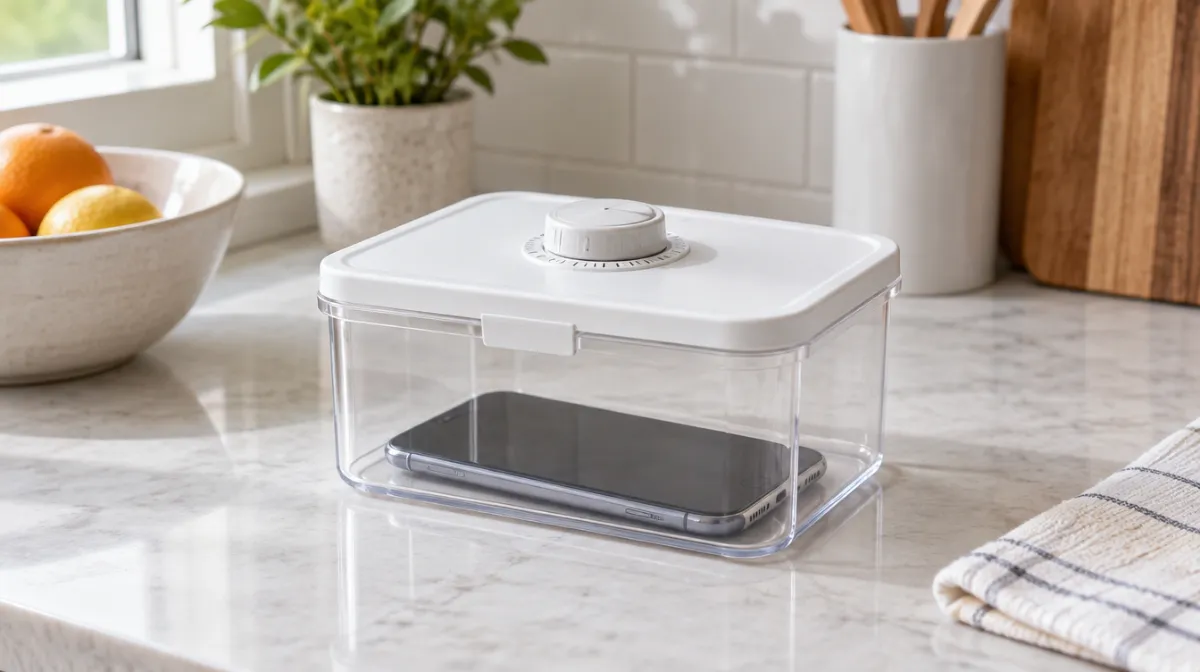
| Physical lockboxes | Timed phone boxes | Lock the phone away for a set time | People who override everything |
Features, prices and platforms change often, so check the current version before paying.
Try a pause-before-open app. A few seconds’ delay is often enough to break the reflex, and you stay free to continue if you really meant to. It’s the gentlest option and surprisingly effective for compulsive checking.
You need hard limits: a daily cap that locks the app when time is up. Built-in limits work if someone else holds the passcode; our guides to Screen Time on iPhone and Digital Wellbeing on Android show how.
A scheduled blocker that covers your phone and computer at once stops you just switching screens. Pair it with the tactics in our guide to not checking your phone at work.
Look for a strict mode that can’t be cancelled during a session, or go physical: a timed lockbox, or leaving the phone in another room. If you keep overriding everything, it may be worth considering a simpler device; read our take on whether dumbphones are worth it.
Often, yes. Built-in limits and free pause-before-open apps are enough for many people. Paid tools mostly add stricter modes, schedules and syncing across devices.
Not usually. Most blockers keep settings on your device or account. Family supervision tools are different, and children should know what’s set up on their phones.
Treat it as scaffolding. After a month or two, many people find the habit has weakened enough to relax the rules, though keeping blocks for your hardest times is sensible.
Every article is edited by a human and checked against our editorial policy. Spotted a mistake? Tell us.
A step-by-step guide to iPhone Screen Time: app limits, Downtime, Always Allowed, a Screen Time passcode and the settings that make limits actually stick.
How to set up Digital Wellbeing on Android: the dashboard, app timers, Focus mode and Bedtime mode, plus Family Link for kids and tips that make limits stick.
Does turning your phone grayscale really cut screen time? What small studies found, why colour matters, how to set it up on iPhone and Android, and its limits.