How to Set Screen Time Limits on iPhone
A step-by-step guide to iPhone Screen Time: app limits, Downtime, Always Allowed, a Screen Time passcode and the settings that make limits actually stick.

How to turn off autoplay and tame recommendations on YouTube, Netflix, Disney+, Prime Video, Facebook, X, LinkedIn and browsers, and why it helps.
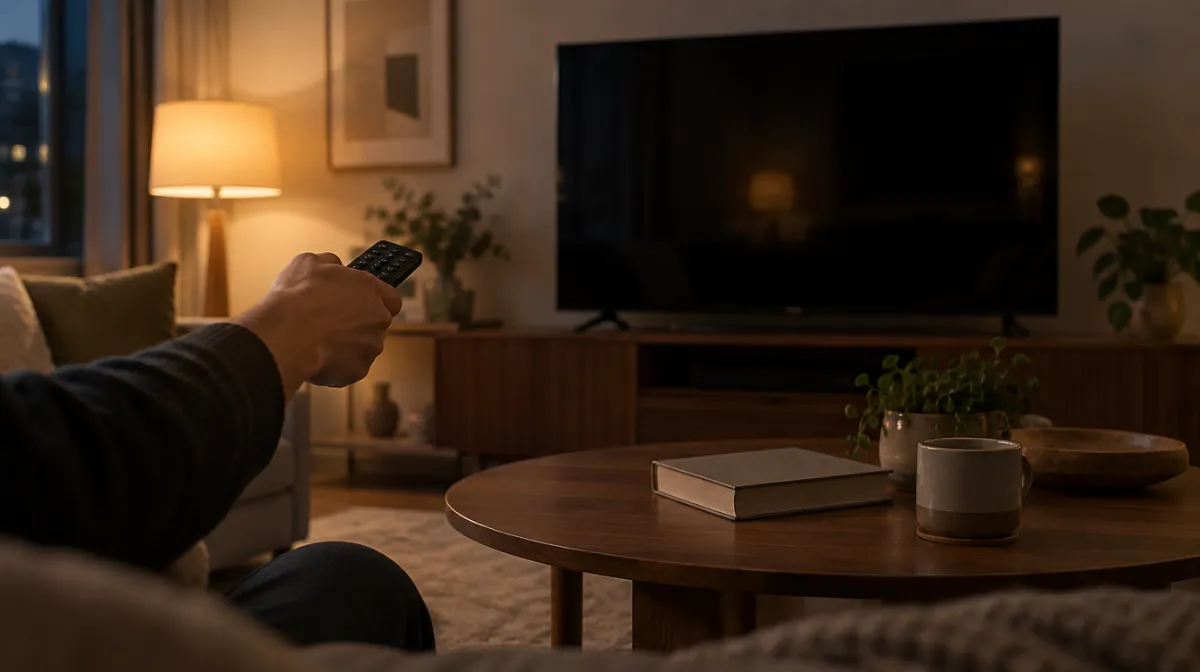
Autoplay is the feature that starts the next episode or video before you’ve decided whether you want it. It’s great for keeping people watching, and that’s exactly the problem if you’d like to watch less. Turning it off restores a natural stopping point: when something ends, nothing happens until you choose. Most streaming services, social apps and browsers let you switch autoplay off in a few taps, and a few extra settings make recommendations less sticky too.
| Service | How to turn off autoplay |
|---|---|
| YouTube | In the player, switch the Autoplay toggle off. In the mobile app’s settings, also turn off “Playback in feeds” to stop videos playing as you scroll |
| Netflix | On the website, open your profile’s playback settings and untick “Autoplay next episode” and “Autoplay previews while browsing”. It applies to all devices on that profile |
| Disney+ | Edit your profile and switch Autoplay off |
| Prime Video | In the app’s settings, turn off Auto Play (it may need changing on each device) |
| Other services | Look under profile, playback or app settings for autoplay and preview options |
Settings move around as apps update, so if an option isn’t where you expect, search the service’s help centre for “autoplay”.
| App | What you can do |
|---|---|
| Settings, then Media, then Autoplay: choose “Never autoplay videos” | |
| X (Twitter) | Settings, then Accessibility, display and languages, then Data usage: set Autoplay to Never |
| Settings, then Account preferences: turn off autoplay videos | |
| Instagram and TikTok | Videos in these feeds play automatically by design; use time limits and quiet modes instead, and consider deleting the app during a reset |
For feeds that can’t be tamed, our guides to quitting short-form video and stopping doomscrolling help.
Many smart TVs and streaming boxes play trailers or previews on the home screen. Look in the TV’s general or home screen settings for options such as video previews or autoplay, and switch them off. Games consoles can also play trailers in their stores and dashboards; turn these off in the system or display settings.
Autoplay is only half of the loop. Recommendations decide what plays next and what fills your home screen.
Every stopping point is a chance to make a choice. Behaviour researchers often talk about friction: small obstacles make an automatic habit less likely, while removing them makes it easier. Autoplay removes the friction from watching more; turning it off adds a little back. It doesn’t stop you watching, but it means the next episode is a decision rather than a default.
Autoplay can keep children watching long after a planned show ends. Turn it off on kids’ profiles, set time limits with parental controls, and agree screen rules together in a family tech agreement. Some services and devices also offer a wind-down or sleep timer that ends playback after a set time, which helps at bedtime.
Switch off the Autoplay toggle in the video player. On mobile, also turn off “Playback in feeds” in the app’s settings.
Yes. Change the playback settings for your profile on the Netflix website, and it applies to all devices using that profile.
Not fully: their feeds play videos automatically by design. Use time limits, quiet modes and app blockers to control use instead.
Every article is edited by a human and checked against our editorial policy. Spotted a mistake? Tell us.
A step-by-step guide to iPhone Screen Time: app limits, Downtime, Always Allowed, a Screen Time passcode and the settings that make limits actually stick.
How to set up Digital Wellbeing on Android: the dashboard, app timers, Focus mode and Bedtime mode, plus Family Link for kids and tips that make limits stick.
Does turning your phone grayscale really cut screen time? What small studies found, why colour matters, how to set it up on iPhone and Android, and its limits.